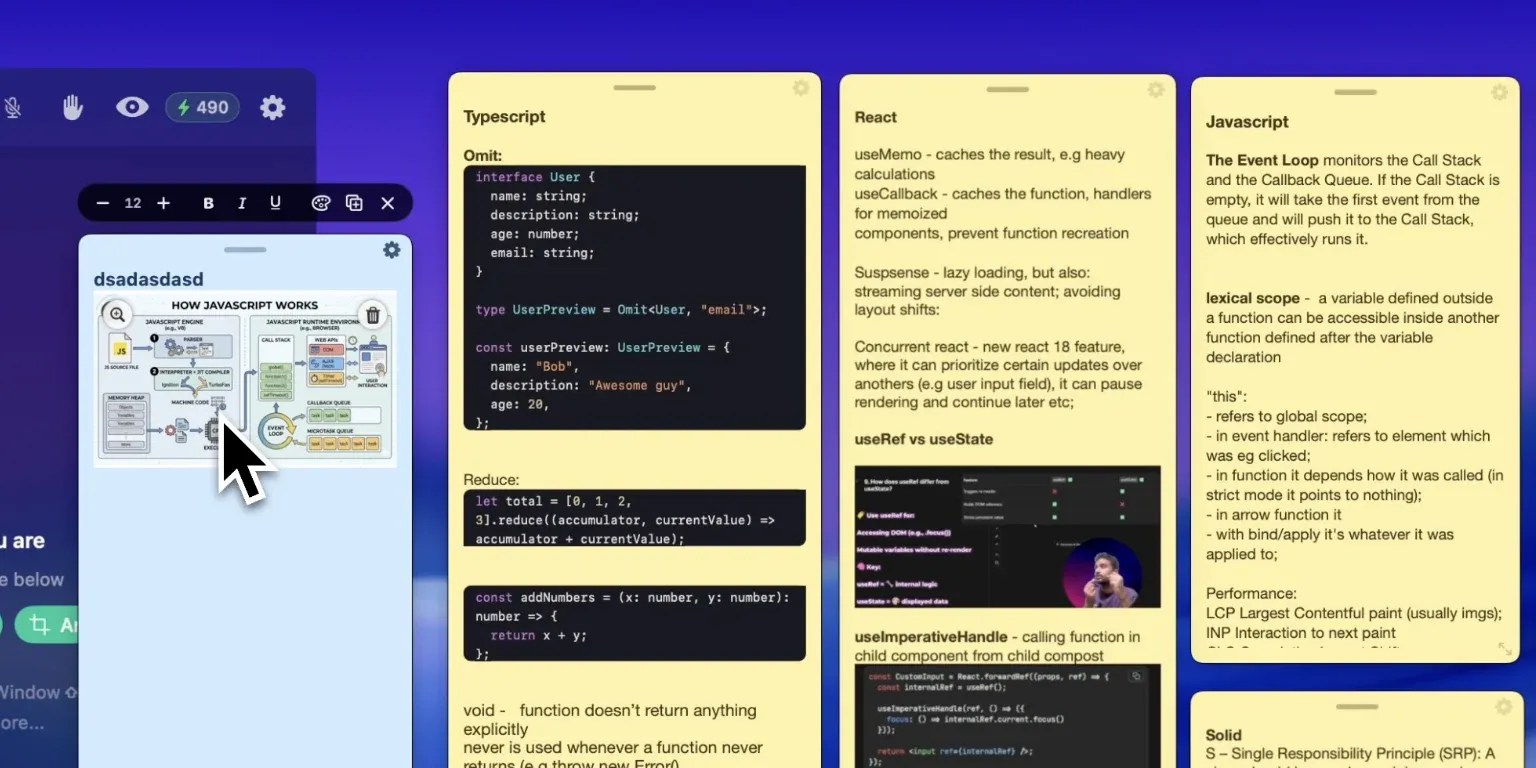
Notes Feature Updates - Screenshots and Highlighted Code
Sticky notes started as plain text you could pin anywhere on screen and hide from every screen sharing tool. That was enough for talking points and reminders. It was not enough for the two things people actually kept trying to put in them: a screenshot, and a chunk of code.
Both work now.
Watch It in Action
The rest of this post is the detail behind what the video shows.
Paste a Screenshot Into a Note
Copy an image and press Cmd+V inside a note, or drag a file in from Finder. The picture lands on its own line and fills the width of the note, though it is never blown up past its own resolution, so a small icon stays a small icon instead of turning into a blurry banner.
Resize the note and the image follows. Type above it or below it and the text flows around it the way you would expect.
What this changes in practice: the diagram you keep re-deriving, the architecture sketch from the docs, a screenshot of the error you are chasing, a photo of a whiteboard. All of it can sit on your screen while you work, on the same layer that stays out of Zoom, Meet, Teams, Discord, and OBS.
Zoom and Delete, Right on the Image
Hover an image inside a note and two small controls appear.
- Top left is zoom. Hold it for a moment and the full-size picture opens as a larger preview, so a dense diagram is readable without shrinking the note or opening Preview.
- Top right is delete. One click and the image is gone. It is undoable with Cmd+Z, like everything else in a note.
Nothing about this changes what the note looks like when you are not hovering it. The controls stay out of the way until you go looking for them.
Code Formats Itself on Paste
Paste source code into a note and Hidini recognizes it, then drops it into a syntax-highlighted block with its own background, monospaced type, and colored tokens. There is no language picker and no markdown mode to switch into. You paste, and it is already formatted.
More than a dozen languages are covered, from TypeScript and JSX through Python, Go, Java, PHP, Swift, Rust, Ruby, C, C++, and shell. If you copied the snippet from a chat or a docs page and it came with a language tag on its code fence, that language is used directly rather than guessed at.
Two details worth knowing:
- Editing inside a block re-highlights it as you type. Fix a variable name and the colors keep up.
- Changing the note color leaves code alone. Recoloring a note repaints the prose and skips the code blocks, so a highlighted snippet does not flatten into one ink color the moment you switch the note from yellow to blue.
It Is Deliberately Reluctant
Automatic detection has an obvious failure mode: turning a paragraph you pasted into a code block. That is far more annoying than missing the occasional snippet, so the detector is biased against firing.
Text has to clear a structural bar first, things like line endings, indentation, symbol density, and operators, weighed against a penalty for reading like prose. Only then does it try to work out which language it is looking at. It was checked against real snippets in every supported language, and against the negatives that matter: a todo list, meeting notes, a URL, a postal address, and prose with semicolons in it. Those all stay prose.
If a snippet does not trigger it, paste it inside triple backticks and it will.
Notes Stay Small and Fast
A sticky note with a picture in it could easily become a heavy thing to save. The obvious approach, embedding the image bytes directly in the note, measured around 4.5 MB for a single 400 by 200 picture, rewritten every time you paused typing.
Instead the image files live in their own store on disk and the note carries a small reference, a few hundred bytes per image. Saving stays quick no matter how many screenshots you have pinned, and deleted images are only swept up later, so undo always has something to point back at.
Cut, Copy, and Undo Work Properly
One more fix that is easy to miss and hard to live without: Cmd+C, Cmd+V, Cmd+X, Cmd+A, and Cmd+Z are all wired up inside notes now. Hidini has no menu bar of its own by design, which is exactly why nothing was carrying the standard editing shortcuts before.
Deleting a note that contains only an image also asks for confirmation now, instead of treating it as empty and discarding it without a word.
Try It
Everything here is in the current build. Open a note, paste a screenshot, paste a function, and watch what happens.
Full details are on the invisible notes feature page, and if you have not installed Hidini yet, the download is here.